For Nigerian iPhone users looking to enjoy their favorite content on a larger display, connecting your device to a smart television is simpler than you might think. Whether you want to stream Nollywood movies, showcase presentations, or play mobile games on the big screen, multiple methods are available to make it happen.
Six practical ways to connect your iPhone to a smart TV
You can mirror your iPhone screen using either wireless technology like AirPlay or wired connections through HDMI adapters. The method you choose depends on your TV's capabilities and your specific needs for stability and convenience.
Check your TV compatibility first
Before attempting to connect, verify whether your smart television supports Apple's AirPlay technology. Most modern Samsung, LG, Sony, and TCL smart TVs manufactured from 2018 onwards include built-in AirPlay support. Check your TV's manual or settings menu to confirm compatibility. If your television doesn't support AirPlay, don't worry—several alternative connection methods will work perfectly.
Wireless connection using AirPlay
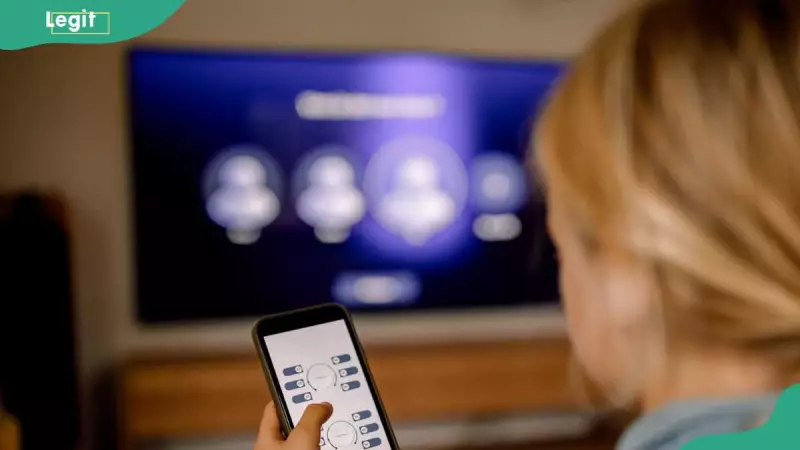
AirPlay represents the most straightforward wireless method for iPhone users in Nigeria. Begin by ensuring both your iPhone and smart TV are connected to the same Wi-Fi network. Swipe down from the top-right corner of your iPhone screen to access Control Centre, then tap the Screen Mirroring icon. Select your television from the list of available devices and enter the AirPlay code if prompted. Your iPhone display will immediately appear on your TV screen.
Wired connection with HDMI adapter
For the most stable, lag-free experience ideal for gaming or extended viewing sessions, consider using Apple's Lightning Digital AV Adapter with a standard HDMI cable. Connect the adapter to your iPhone's charging port, attach an HDMI cable between the adapter and your television, then switch your TV input to the corresponding HDMI channel. This method works with any television featuring an HDMI port, regardless of smart capabilities.
Streaming device alternatives
If your television lacks AirPlay support, streaming devices like Google Chromecast or Roku offer excellent alternatives. After setting up Chromecast using the Google Home app on your iPhone, simply open supported applications like YouTube or Netflix and tap the cast icon to stream content directly to your television. Similarly, Roku devices allow screen mirroring through the Roku mobile application available in Nigeria's App Store.
Third-party mirroring applications
Several third-party applications provide additional mirroring options for Nigerian users. Popular choices include ApowerMirror, LetsView, AirBeamTV, and TV Assist. These applications typically require installation on both your iPhone and smart TV (if supported), with both devices connected to the same Wi-Fi network. Many offer extra functionality like file sharing and customized media playback controls.
Troubleshooting common connection issues
Even with proper setup, you might encounter occasional technical difficulties. If your television doesn't appear in the AirPlay device list, confirm both devices share the same Wi-Fi network. For lagging or delayed mirroring, switch to a 5GHz Wi-Fi band or use a wired HDMI connection. Should AirPlay fail entirely, restart both your iPhone and television, then attempt reconnection.
Benefits of iPhone to TV mirroring
Mirroring your iPhone screen to a television transforms how you consume content and conduct professional activities in Nigeria. Enjoy movies and streaming services on a much larger display, present business materials more effectively during meetings, experience mobile gaming with enhanced immersion, and share family photos and videos with everyone in the room simultaneously.
Frequently asked questions
Can I connect without Wi-Fi? Yes, using a Lightning Digital AV Adapter and HDMI cable creates a direct wired connection that doesn't require internet access.
Does Bluetooth support screen mirroring? No, Bluetooth cannot mirror your entire iPhone display, though it can connect for audio streaming purposes.
Why can't I mirror Netflix or YouTube? Most streaming applications support casting directly to compatible televisions—look for the cast icon within the app interface.
What method provides lag-free performance? Wired HDMI connections deliver the most reliable, interruption-free mirroring experience for gaming and video playback.
Regardless of your television's age or capabilities, at least one of these methods will successfully connect your iPhone to your smart TV. From enjoying streaming services to presenting business materials, screen mirroring opens up new possibilities for how you use your iPhone in Nigeria.